



BMC Network Manager
Introduction
BMC Network Management (BMC Network Manager is a network status viewing and configuration function provided by aBMC for management controllers. It consists of the following three modules.
- Net Manage: View the status of the physical network port and configure the IPv4 address, default gateway, gateway priority and DNS through DHCP or manually.
- Bond Manage: Combine multiple available network ports into a Bond aggregation device, and configure the aggregation mode and IPv4 network parameters.
- VLAN Manage: Create a VLAN sub-interface on the specified network port, and configure the VLAN ID, associated network port, and IPv4 network parameters.
Development Vision
- Provide users with a unified and visual BMC network status and configuration entry to facilitate quick confirmation of the management network, aggregation network and VLAN network status.
- Reduce the risk of BMC loss due to incorrect modification of key network ports through network card type restrictions, parameter verification, and configuration result confirmation.
Feature Usage
View and configure BMC network cards
Enter the BMC network management page
- Select System in the main navigation bar on the left.
- Select Network in the secondary navigation bar.
- Select Net Manage at the top of the page.
- Select the target network card in the Network Port tab, such as Net Port or Net Port.
- When you need to modify the configuration, click Setting.
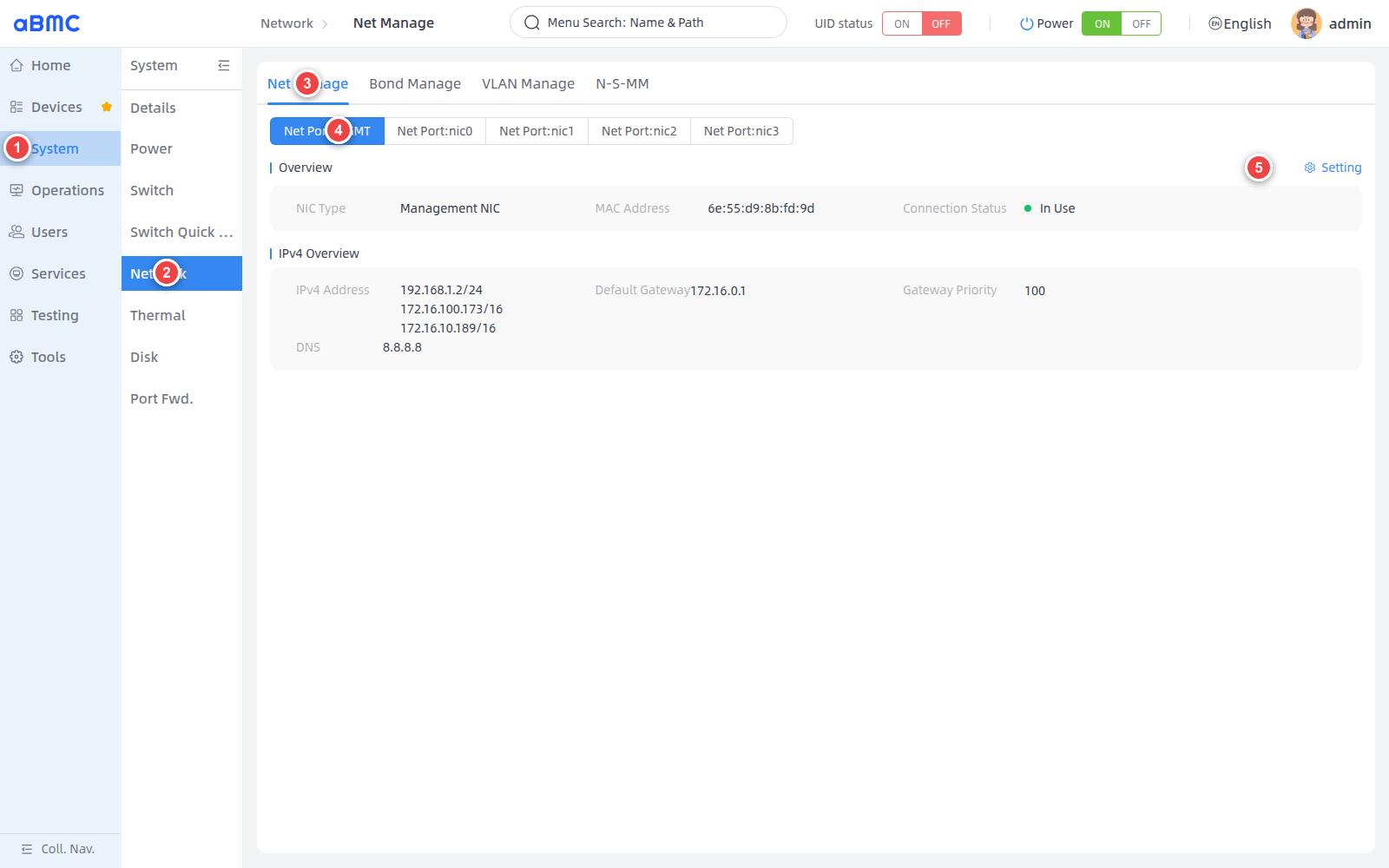
View network card information
Before modifying the configuration, you should confirm the target network card based on the network port name and MAC address, and record the original network configuration.
| Page fields | Description |
|---|---|
| Net Port | BMC network card name, such as MGMT, nic0, or nic1. The page does not display the loopback interface lo. |
| NIC Type | The management type of the network card. Move the mouse pointer over Setting to see the current type's usage and configuration limitations. |
| MAC Address | Network card MAC address, used to identify the physical interface. |
| Connection Status | The current connection status of the network port, such as In Use, Not In Use or Exception. |
| IPv4 Address | Current IPv4 address and prefix length. The same network card can display multiple addresses. |
| Default Gateway | The current IPv4 default gateway. |
| Gateway Priority | The routing priority of the current default gateway. |
| DNS | Current DNS server. |
Determine whether the network card is allowed to be configured
- Setting Available: The current network card allows users to modify the configuration.
- Setting Disabled: The current network card may be a private network card, Bond device or Bond member used by the BMC to communicate with the sub-board, and users are not allowed to configure it directly.
Network card type restriction
Do not attempt to bypass page limits via the CLI or API. Before configuration, you should confirm that Oem.Firefly.SettingEnabled in the network card resource is true.
Configure IPv4
- Confirm that the current configuration is IPv4 Configuration. IPv6 Configuration and VLAN Configuration are currently unavailable.
- Select Auto (DHCP) or Manual in IPv4 Mode.
- When using Manual, enter Address and Subnet Mask. After filling in the complete address, a blank line will be automatically added to the page; if you need a default route, fill in Gateway and Gateway Priority in the first line.
- Enter the DNS server in DNS; separate multiple addresses with commas.
- If you do not want to save changes, click Cancel.
- After checking that the parameters are correct, click Confirm.
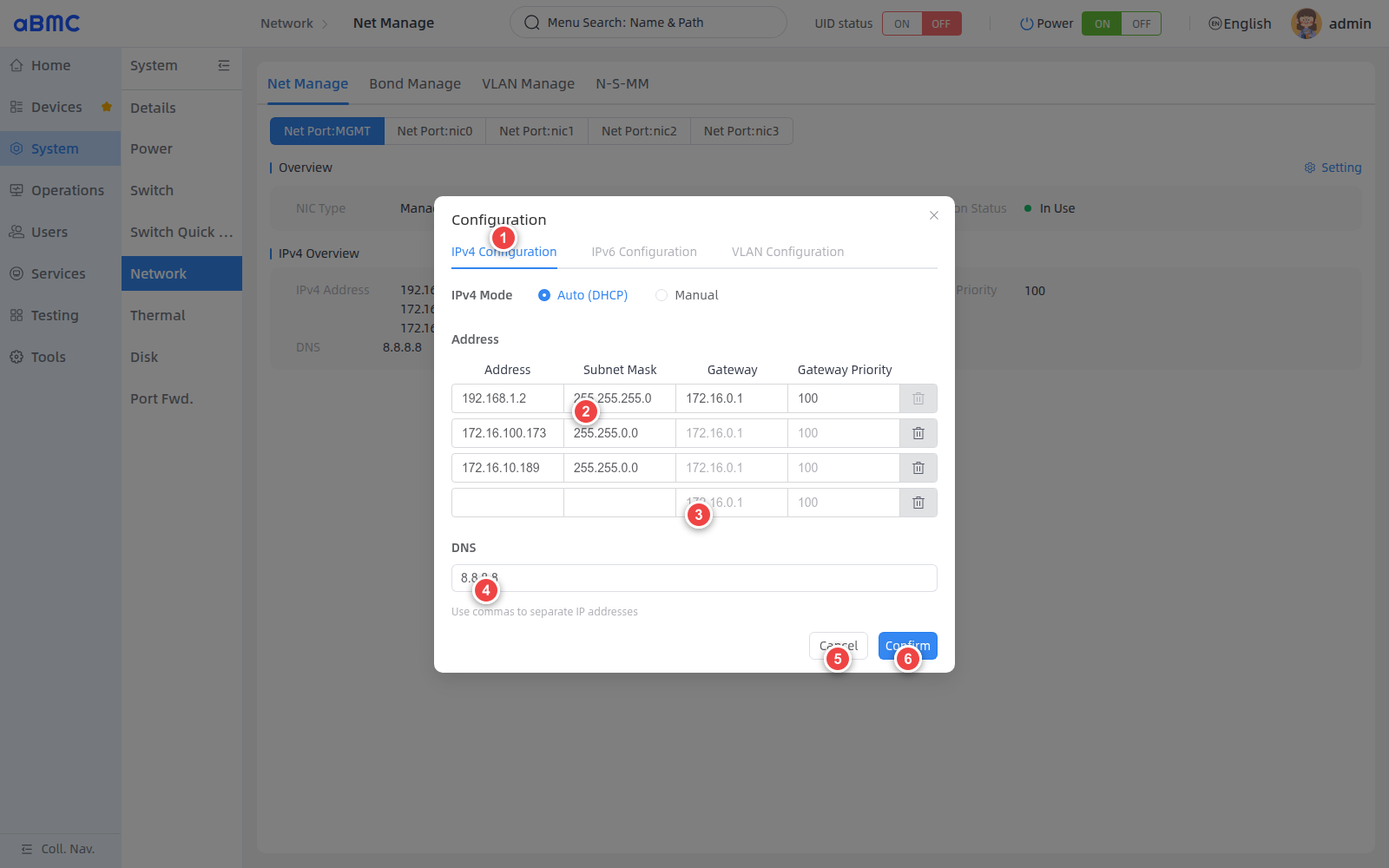
Configuration rules
| Configuration items | Rules |
|---|---|
| Auto (DHCP) | IPv4 addresses are assigned by a DHCP service. |
| Address | Manual mode fills in at least one valid IPv4 address; supports configuring multiple addresses for the same network card. |
| Subnet Mask | In Manual mode, each static address must also be filled with a valid subnet mask. |
| Gateway | Optional; must be a valid IPv4 address. In a multi-address scenario, enter only the first line. |
| Gateway Priority | When filling in the gateway, you should also fill in the positive integer priority. The same gateway and priority combination cannot be repeated with other network cards or VLANs. |
| DNS | Optional; must be a valid IP address, multiple addresses separated by commas. |
Confirm configuration result
- Close the setting window and wait for the page to re-obtain the network card information.
- Reselect the target Net Port.
- Confirm that the IPv4 Address, Default Gateway, Gateway Priority, and DNS are updated.
- Verify BMC address connectivity, default route, and domain name resolution from the corresponding network segment.
BMC Network Change Risk
Modifying the management address, subnet mask, or default gateway currently in use may cause immediate interruption of WEB, CLI, and API connections. Before operation, the original configuration should be recorded and a serial port or other independent recovery channel should be prepared. The address in the screenshot is only used to illustrate the page location.
Configure BMC network aggregation
Open Bond Manage
- Select System in the main navigation bar on the left.
- Select Network in the secondary navigation bar.
- Select Bond Manage at the top of the page.
- When there are multiple Bond devices, select the target Device.
- Click Add to add a new Bond device.
- Click Setting to modify the current Bond device.
- Click remove to remove the current Bond device.
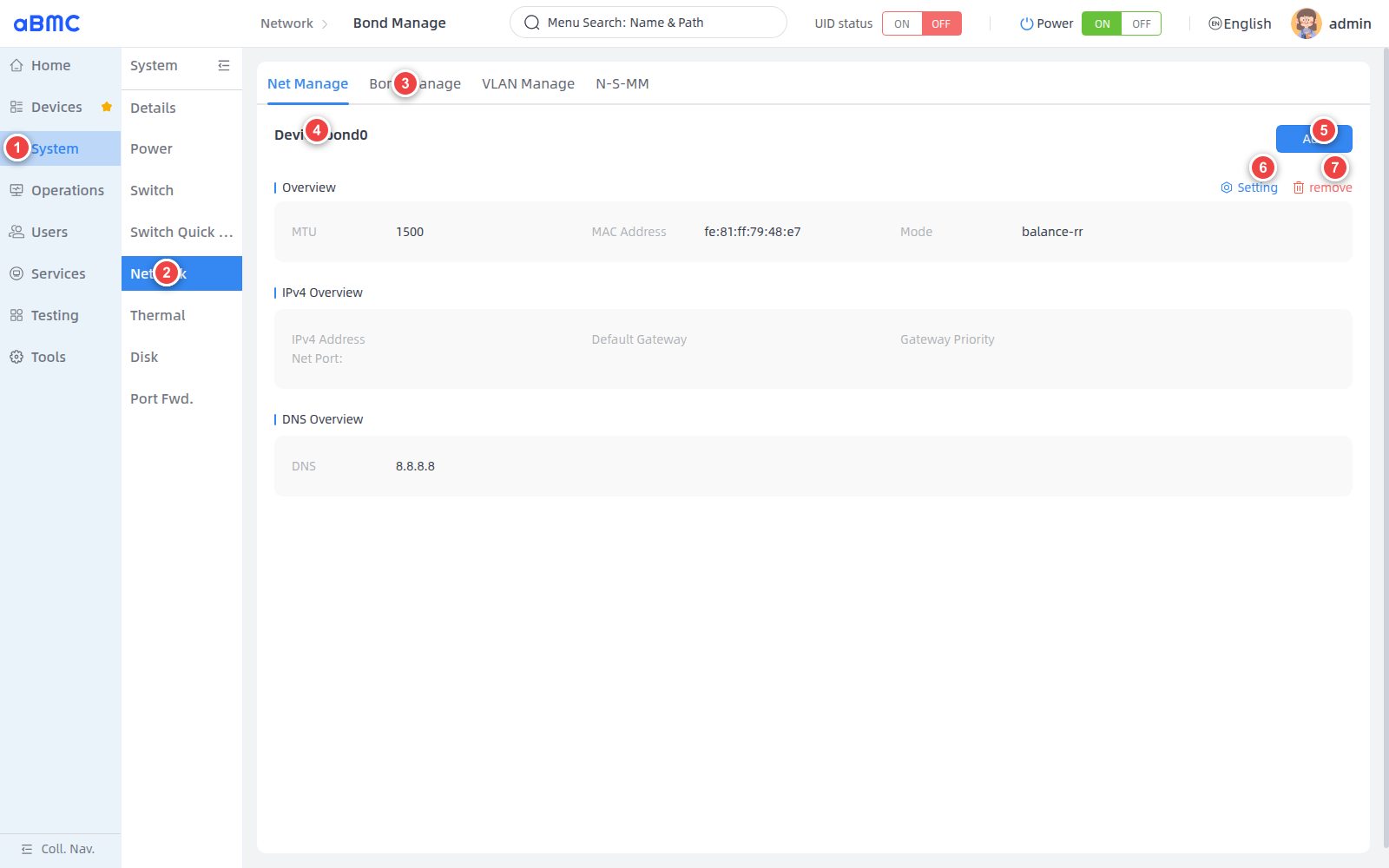
Check Bond status
| Page fields | Description |
|---|---|
| Device | Bond device name, for example bond0. |
| MTU | Bond The maximum transmission unit of the device. |
| MAC Address | The MAC address of the Bond device. |
| Mode | Current network aggregation mode. |
| IPv4 Address | Bond The current IPv4 address of the device. |
| Default Gateway | The current IPv4 default gateway. |
| Gateway Priority | The routing priority of the default gateway. |
| Net Port | Current Bond member network port. |
| DNS | Current DNS server. |
Add new Bond device
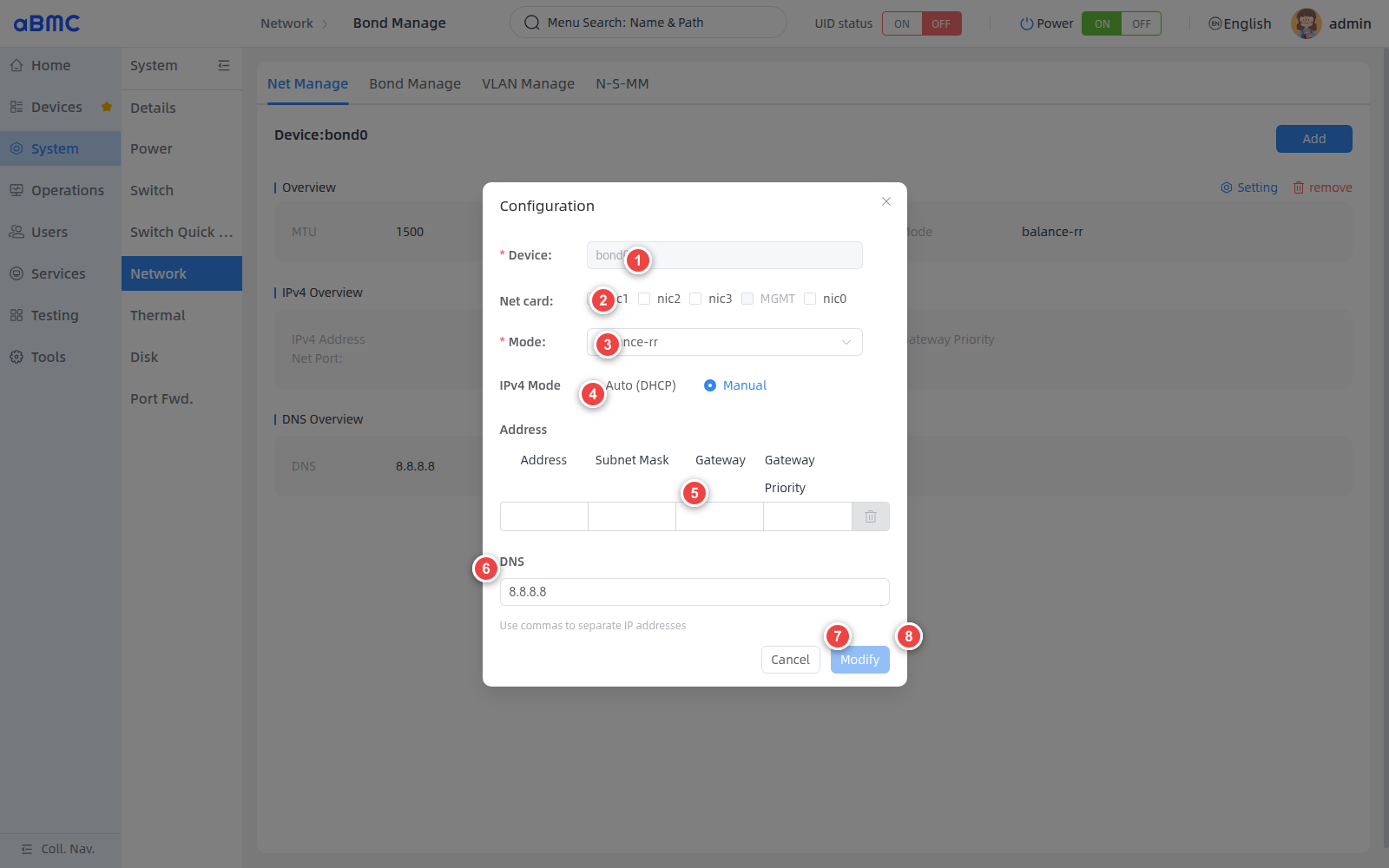
- Enter the Bond device name in Device.
- Select at least two available network ports in Net card. The gray network port cannot currently add new bonds.
- Select the aggregation mode in Mode.
- Select Auto (DHCP) or Manual in IPv4 Mode.
- When using Manual, fill in the address, subnet mask, gateway and gateway priority.
- Fill in the DNS as needed; separate multiple addresses with commas.
- Click Cancel if not saving.
- Click Add after checking the configuration.
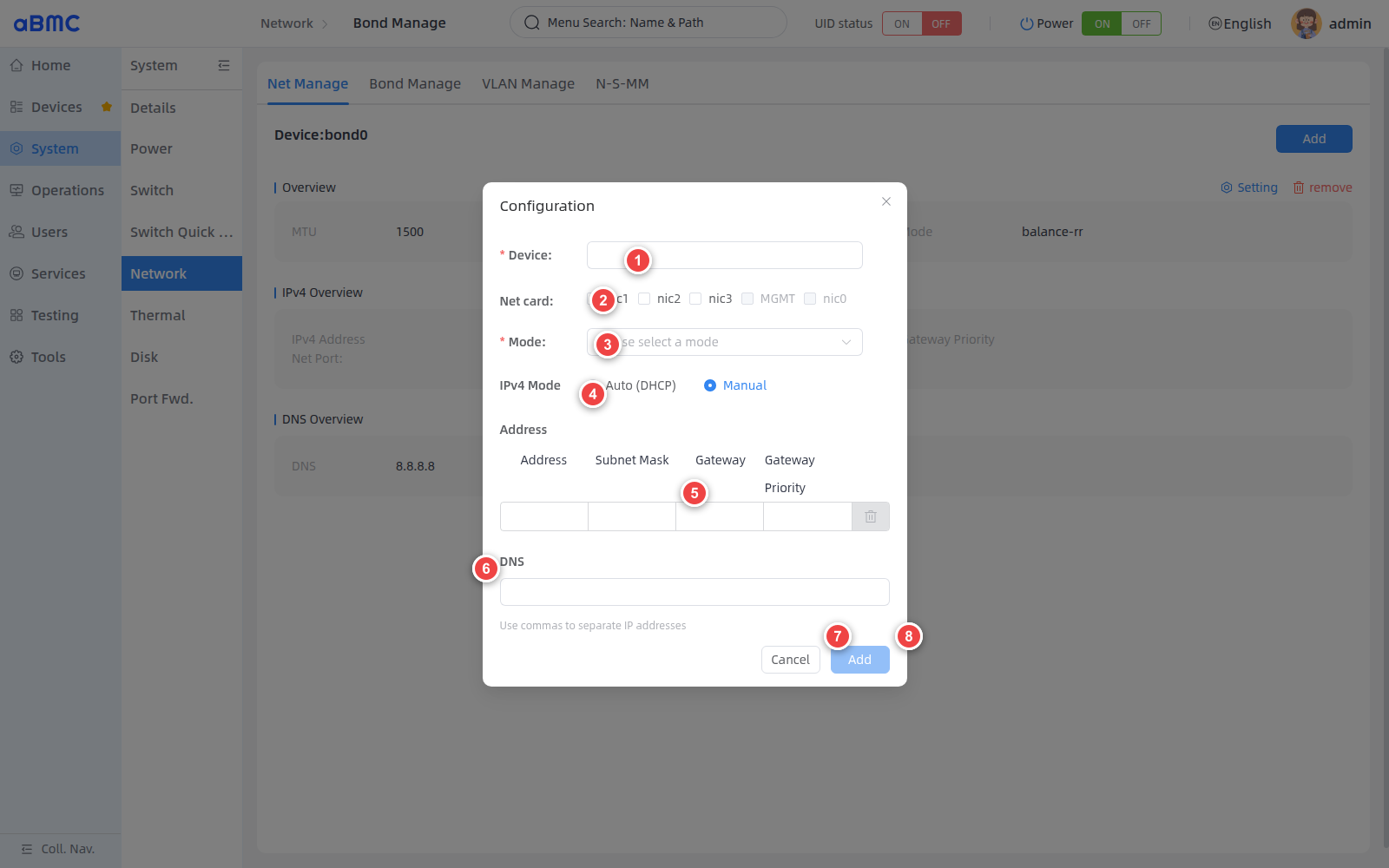
Modify or delete Bond device
When modifying Bond, the device name cannot be changed, but member network ports, aggregation mode, and IPv4 parameters can be adjusted. Modify can be submitted only after selecting at least two available member network ports.
When deleting a Bond, click remove and check the device name in the confirmation window before confirming the deletion. Before deleting, you should first confirm that the Bond does not carry current management connections or business traffic.
Bond configuration rules
| Configuration items | Rules |
|---|---|
| Device | Required; length is 3–15 characters, must start with bond, and can only contain English letters and numbers. After adding, the name cannot be changed in the modification window. |
| Net card | Select at least two non-loopback network ports. Private network ports, network ports that are prohibited from configuration, and network ports that already belong to other Bonds cannot be selected. |
| Mode | Optional values are 802.3ad, active-backup, balance-alb, balance-rr, balance-tlb, balance-xor, broadcast. |
| Auto (DHCP) | The Bond device is assigned an IPv4 address by a DHCP service. |
| Manual | Supports configuring one or more IPv4 addresses, subnet mask, default gateway, gateway priority and DNS. |
| Setting | Available only when the Bond resource's Oem.Firefly.SettingEnabled is true. |
Influence of member network ports
After a network port is added to Bond, it cannot be configured directly as an independent network port. Changing the Bond member or mode may cause the link to be temporarily interrupted; when using modes such as 802.3ad, you should also ensure that the configuration of the peer switch is consistent with the server.
Management BMC VLAN
Open VLAN Manage
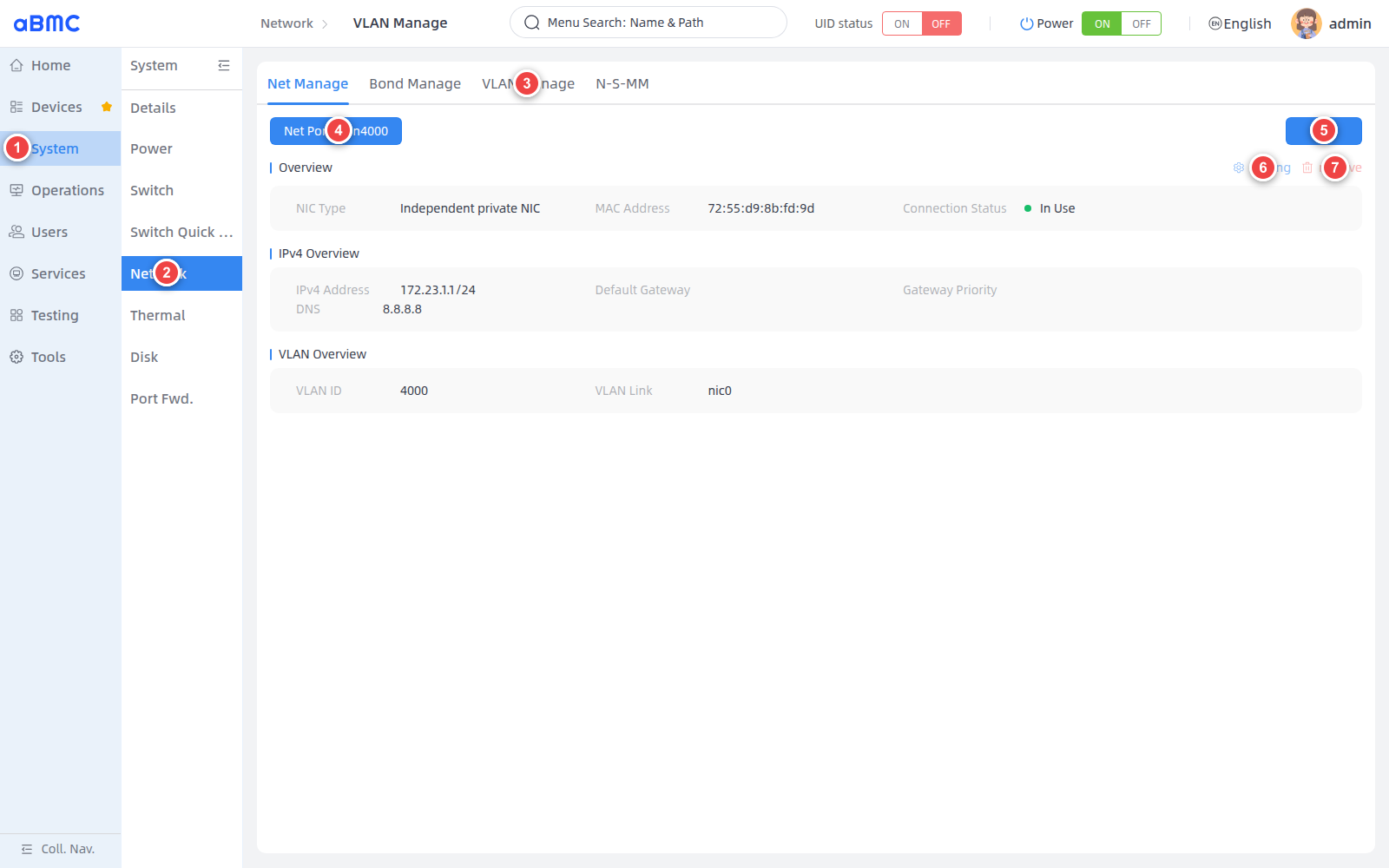
- Select System in the main navigation bar on the left.
- Select Network in the secondary navigation bar.
- Select VLAN Manage at the top of the page.
- When there are multiple VLAN devices, select the target Net Port.
- Click Add to add a new VLAN device.
- When Setting is available, you can modify the IPv4 configuration of the current VLAN.
- When remove is available, the current VLAN can be deleted.
Check VLAN status
| Page fields | Description |
|---|---|
| Net Port | VLAN device name, for example vlan4000. |
| NIC Type | Management type of the VLAN device. |
| MAC Address | MAC address of the VLAN device. |
| Connection Status | The current connection status of the VLAN device. |
| IPv4 Address | The current IPv4 address and prefix length of the VLAN device. |
| Default Gateway | The current IPv4 default gateway. |
| Gateway Priority | The routing priority of the default gateway. |
| DNS | Current DNS server. |
| VLAN ID | VLAN identification. |
| VLAN Link | The underlying network port associated with the VLAN sub-interface. |
Add VLAN device
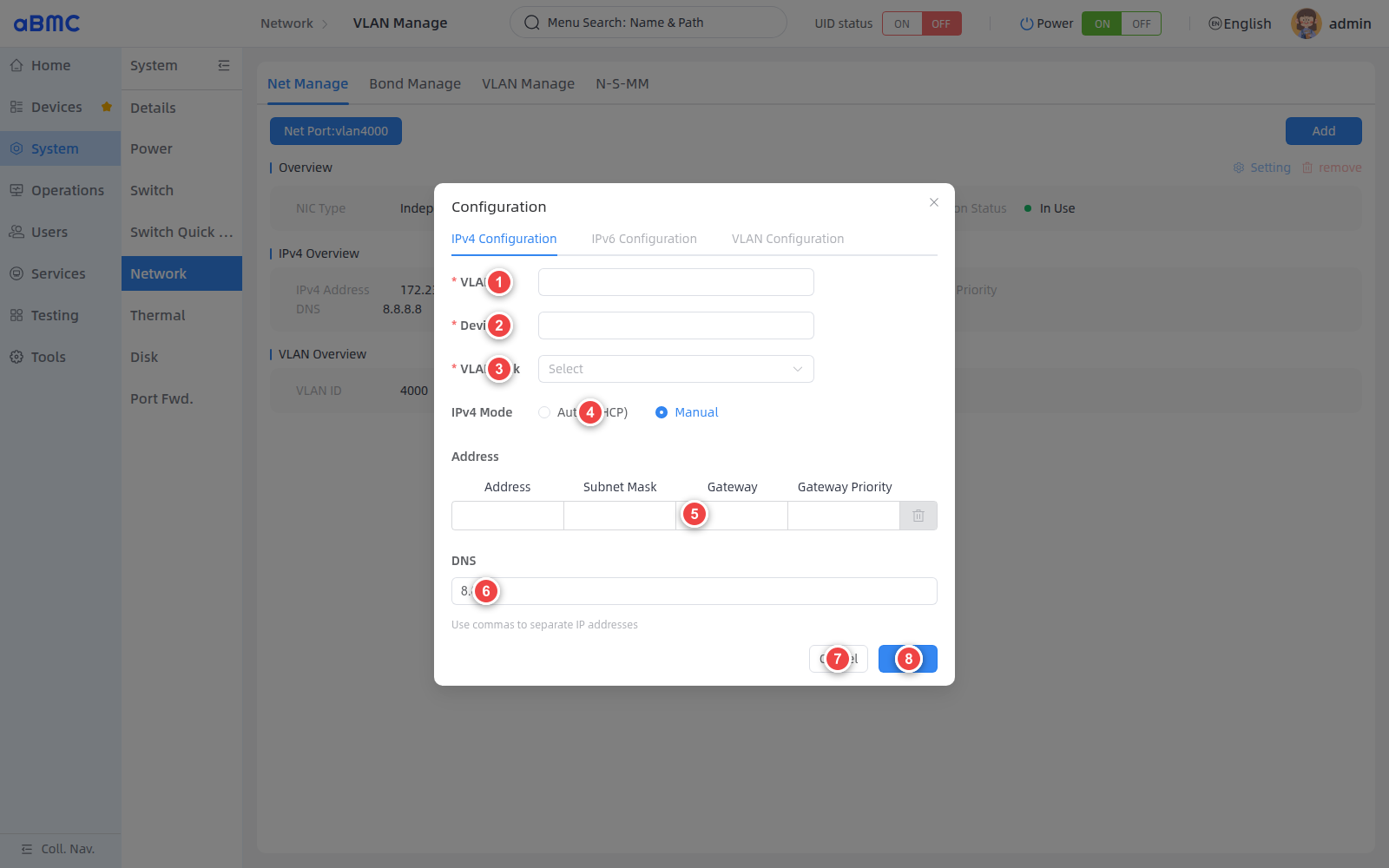
- Enter the VLAN ID in VLAN ID.
- Confirm the VLAN device name in Device. After entering a valid VLAN ID and leaving the input box, the page automatically generates
vlan<VLAN_ID>if the field is empty. - Select the underlying network port in VLAN Link.
- Select Auto (DHCP) or Manual in IPv4 Mode.
- When using Manual, fill in the address, subnet mask, gateway and gateway priority.
- Fill in the DNS as needed; separate multiple addresses with commas.
- Click Cancel if not saving.
- Click Add after checking the configuration.
Modify or delete VLAN
- Setting When available, the IPv4 mode, address, subnet mask, gateway, gateway priority, and DNS can be modified. The VLAN ID, device name and VLAN Link of an existing VLAN cannot be changed in the modification window.
- remove When available, click the button and confirm the removal in the confirmation window.
- When Setting and remove are disabled at the same time, it means that the
Oem.Firefly.SettingEnabledof the current VLAN isfalse, such as an independent private VLAN used for internal communication of the system. This type of VLAN cannot be modified or deleted through the current page.
VLAN configuration rules
| Configuration items | Rules |
|---|---|
| VLAN ID | Required; must be an integer in the range 1–4094. |
| Device | Required when adding. It can be generated by vlan<VLAN_ID> by default; it cannot be renamed in the modification window after creation. |
| VLAN Link | Required when adding; select the underlying network port that carries VLAN. The loopback interface lo is unavailable. |
| Auto (DHCP) | IPv4 addresses are assigned to VLAN devices by a DHCP service. |
| Manual | Supports configuring one or more IPv4 addresses, subnet mask, default gateway, gateway priority and DNS. |
| Gateway Priority | The same gateway and priority combination cannot be repeated with other network cards or VLANs. |
| When | SettingEnabled |
VLAN Connectivity Requirements
Before creating a VLAN, you should confirm that the peer switch port allows the corresponding VLAN ID, and confirm that the VLAN Link is selected correctly. Incorrect VLAN ID, underlying network port, or gateway configuration may render the VLAN address inaccessible.
FAQ
1.Setting is not available
The current NIC, Bond, or VLAN may be a system internal communication interface, a private interface that is prohibited from configuration, or a Bond member. Query the corresponding resource and confirm Oem.Firefly.SettingEnabled; when the value is false, it cannot be modified.
Unable to access BMC after modification
If the current communication network port, Bond or VLAN is modified, the original address may become invalid immediately. Reconnect using the new address; if unable to connect, restore the original configuration through the serial port or other independent channels.
Why some network ports cannot be added to Bond
Loopback interfaces, private network ports, network ports whose SettingEnabled is false, and network ports that already belong to other Bonds cannot be added to a new Bond. A Bond requires at least two available member network ports.
4.How to choose Bond mode
active-backup can be used in general active and backup scenarios; 802.3ad can be used when link aggregation control protocol is required, and the switch can be configured simultaneously; other load balancing modes should be selected based on the network topology and peer capabilities.
Why are Setting and remove of VLAN disabled at the same time?
The current VLAN's SettingEnabled is false, which usually means that the VLAN is used for internal or private communication within the system. Do not bypass restriction modification or deletion via API.
How to configure multiple IPv4 addresses
After filling in a line of Address and Subnet Mask in the Manual mode of the WEB, a blank line will automatically be added to the page. The CLI can only submit one address for the physical network card at a time. Please use WEB or API for multiple address scenarios.
Gateway priority conflict
The same gateway and priority combination is already in use by another network card or VLAN. Please adjust Gateway or Gateway Priority to avoid being exactly the same as the existing configuration.