



Port Forwarding
Introduction
Port Forwarding is a traffic forwarding management function designed for array servers. This function consists of two modules: rule management and page jump:
-
Rule management: Responsible for uniformly creating, enabling, disabling, editing and deleting forwarding rules.
-
Page jump: supports one-click jump to the management web page deployed by the customer on the array sub-node in the server for quick access.
Development Vision
-
Provide users with a unified network entrance to simplify the operation and maintenance process and reduce the management costs of array sub-node addresses, routing and access entrances.
-
Users can use rule management to control traffic in a refined manner, effectively avoiding unnecessary port exposure in array sub-nodes.
Feature Usage
View port mapping
Open the port mapping page
- Select System in the main navigation on the left.
- Select Port Fwd. in the secondary navigation bar.
- Wait for the rule list and paging area to complete loading and view the current rules; when there are no rules, the list displays No Data.
- When you need to find a rule, enter the name, protocol, port, IP, status, or URL in the search box.
- When you need to create a rule, click Add.
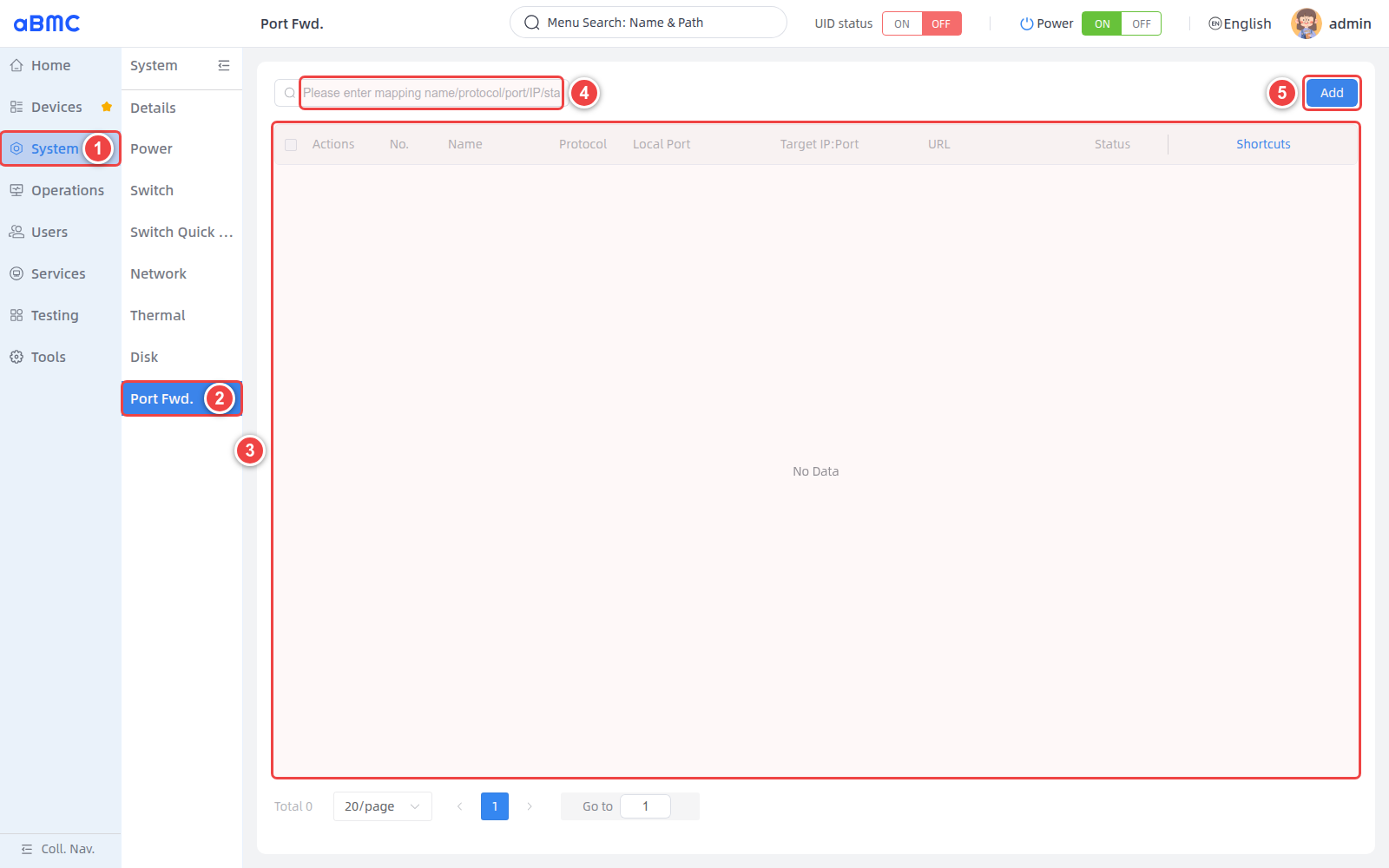
List field description
| Field | Description |
|---|---|
| Actions | Opens the rule action menu. After selecting multiple rules, you can enable, disable, or delete the selected rules in batches. |
| No. | The sequence number of the rule in the current page. |
| Name | Rule name, used to identify forwarding services or usage scenarios. |
| Protocol | The transport layer protocol used for forwarding, the value is TCP or UDP. |
| Local Port | The local port that BMC listens to externally. The management host accesses the mapping service through this port. |
| Target IP | The target IPv4 address and service port to which traffic is ultimately forwarded. |
| URL | The quick access address configured for the web service. |
| Status | The rule is currently Enable or Disable. |
| Shortcuts | Provides shortcut operations for opening URLs, editing rules, and deleting rules. |
Access path
The port forwarding path is: management host → BMC_IP:Local Port → Target IP:Target Port. The URL is only used for quick page access and does not replace the actual target IP and target port configuration.
Add port mapping
Confirm network planning
Before adding a rule, you should first confirm the forwarding protocol, BMC local listening port, target device address, target service port, and rule initial status. The local port cannot conflict with BMC system services or other mapping rules, and the target service should be accessible from the network where the BMC is located.
Configure port mapping
Click Add on the port mapping page, and then configure it as shown below:
- Fill in Name in Basic Config and select TCP or UDP protocol.
- Fill in the Local Port for BMC external monitoring in Local Config. Local IP is managed by the system and cannot be edited on the page.
- Fill in Target IP and Target Port in Target Config; if a Web shortcut is required, fill in URL.
- Select Enable or Disable in Status.
- After checking that the configuration is correct, click Confirm.
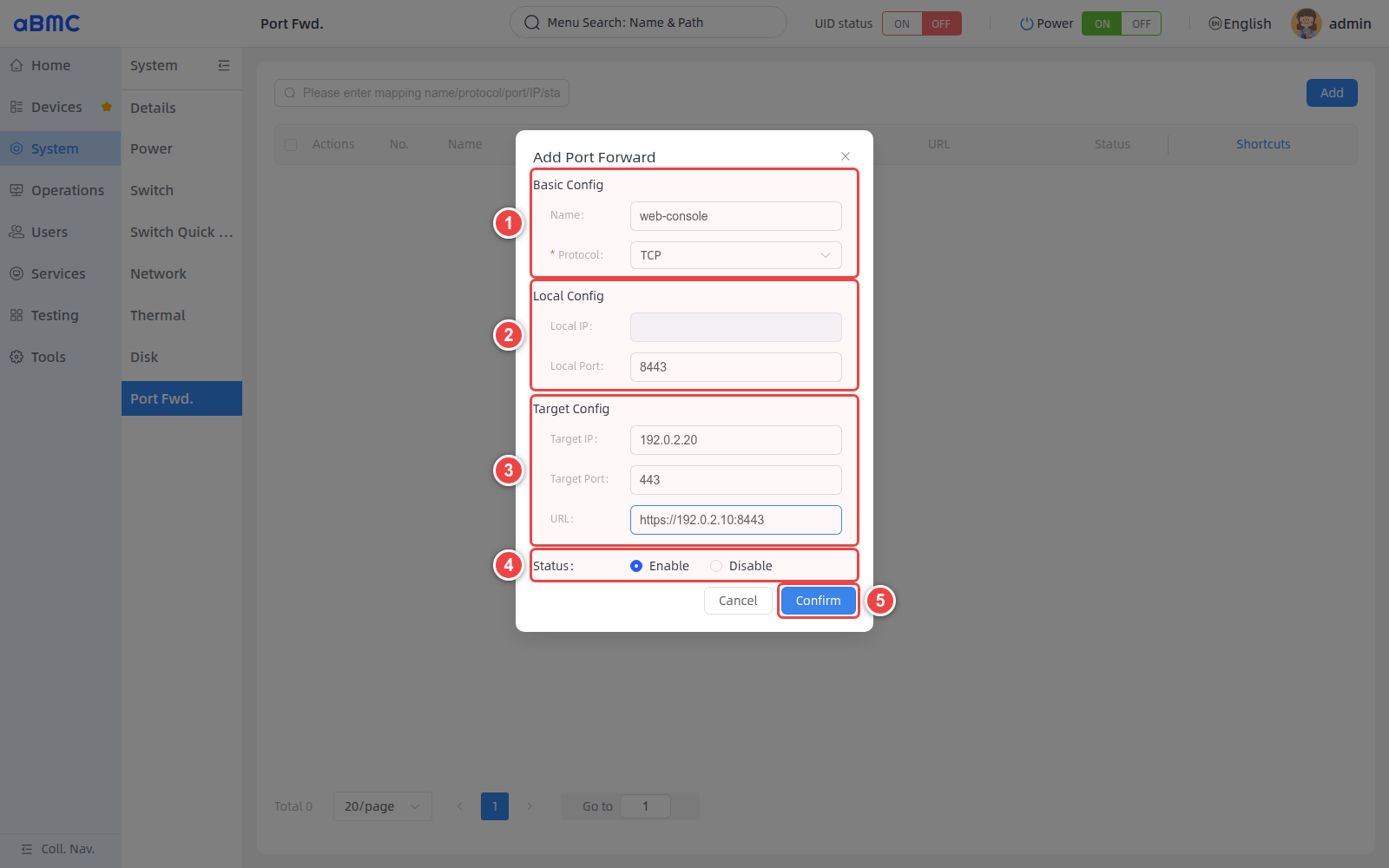
Parameter description
| Parameter | Required | Description | Configuration requirements |
|---|---|---|---|
| Name | Yes | The name of the rule. | The length is 1–32 characters, and Chinese and English letters, numbers, underscores and hyphens can be used. |
| Protocol | Yes | The protocol used for port forwarding. | Select TCP or UDP depending on the target service. |
| Local IP | System generated | The local listening address of the BMC. | The page is read-only, no need to fill it in manually. |
| Local Port | Yes | The port that BMC listens to externally. | Fill in the integer in the 1–65535 range that is not occupied by system services or other rules. |
| Target IP | Yes | The address of the target device to which forwarded traffic will be received. | Fill in the legal IPv4 address that the BMC can access. |
| Target Port | Yes | The service port on the target device. | Fill in an integer in the range 1–65535 and confirm that the target service is listening on the port. |
| URL | No | The shortcut address used to open the icon in Shortcuts. | Web services are recommended to fill in the complete URL including protocol, address and port; non-Web services can be left blank. |
| Status | Yes | The start and stop status after saving the rule. | Enable means enabling after saving; Disable means only saving the configuration and not forwarding it yet. |
Configuration example
The example in the figure below shows that after the management host uses TCP to access the 8443 port of the BMC, the traffic is forwarded to 192.0.2.20:443.
| Parameters | Example values |
|---|---|
| Name | web-console |
| Protocol | TCP |
| Local Port | 8443 |
| Target IP | 192.0.2.20 |
| Target Port | 443 |
| URL | https://192.0.2.10:8443 |
| Status | Enable |
Example address description
192.0.2.0/24 is the document example address segment. During actual configuration, please replace the BMC address, target device address and port with the BMC address, target device address and port available in the field. Do not use the example values directly.
Confirm configuration result
- Return to the rule list and confirm that Name, Protocol, Local Port and Target IP are consistent with the network plan.
- Confirm that Status is the expected status; when set to Enable, connect
BMC_IP:Local Portfrom a management host that allows access to the BMC. - Confirm that the request can reach the target service, and check whether the service status, listening port, firewall, and routing of the target device are normal.
- When the URL is configured, click the open icon in Shortcuts to confirm that the shortcut address is accessible.
Safety Tips
Enabling port mapping adds a new network entry for the target service. Map only business-essential services and limit access sources in conjunction with on-site network policies. Do not leave management ports open for long periods of time that do not need to be open to the outside world.
Management port mapping
View the rule management entrance
When port mapping exists in the rule list, select the corresponding operation as shown below:
- Click the settings icon in the Actions column of the target rule to open the actions menu.
- Select Enable/Disable to enter the rule enable or disable operation.
- Select Delete to delete the current rule.
- Click the Open icon in Shortcuts to access the URL of the rule configuration.
- Click the edit icon to modify the current rule.
- Click the delete icon to quickly delete the current rule.
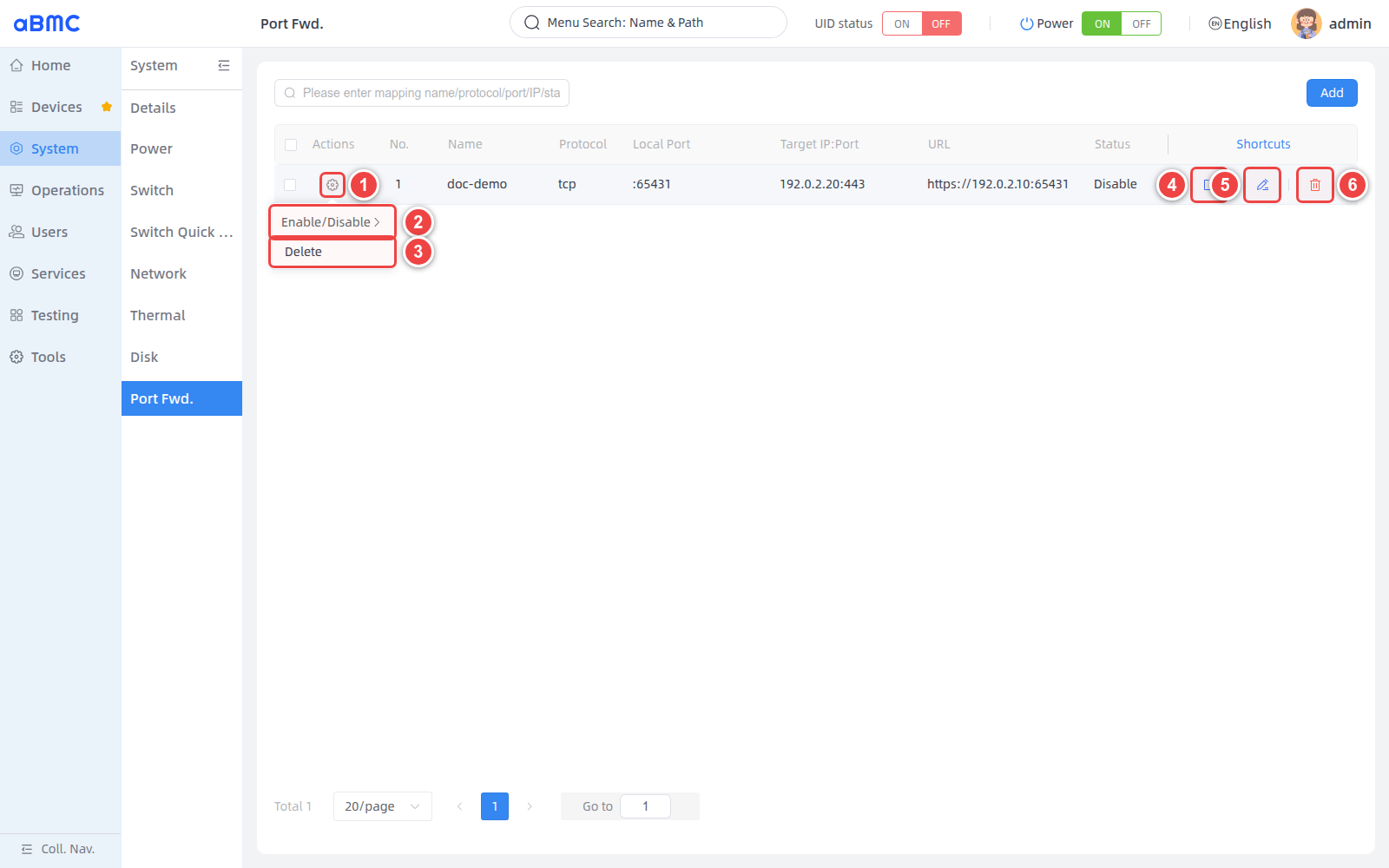
Enable or disable rules
- Open the action menu in Actions of the target rule.
- Select Enable/Disable, then select Enable or Disable.
- Return to the list and confirm that the Status has been updated.
- After enabling the rule, verify the forwarding entry; after disabling the rule, confirm that the corresponding local port no longer forwards traffic.
Edit rules
- Click the edit icon in Shortcuts of the target rule.
- Modify the protocol, port, destination address, URL, or status in the editing window.
- After clicking Confirm, recheck the list contents and verify the forwarding result.
Modify local port
Modifying the Local Port will change the access entry of the management host. Before saving, you should confirm that the new port is not occupied, and synchronize the access addresses, scripts, and operation and maintenance records that rely on this entry to update.
Open the shortcut address
- Confirm that the target rule has a URL configured.
- Click the Open icon in Shortcuts.
- When the URL is empty, the open icon is unavailable; non-Web services such as SSH and database should use the corresponding protocol client to connect
BMC_IP:Local Port.
Delete rules
- Confirm that no business or operation and maintenance personnel are using the forwarding portal.
- Select Delete in the Actions menu, or click the delete icon in Shortcuts.
- Check the operation in the confirmation window and confirm the deletion.
- Return to the list, confirm that the rule has been removed, and verify that the corresponding local port has stopped forwarding.
Batch management rules
- Select at least two rules on the left side of the list.
- Open the batch operation menu in Actions of any selected rule.
- Select Batch Enable/Disable to expand batch status operations.
- Select Batch Enable to enable all selected rules.
- Select Batch Disable to disable all selected rules.
- Select Batch Delete to delete all selected rules.
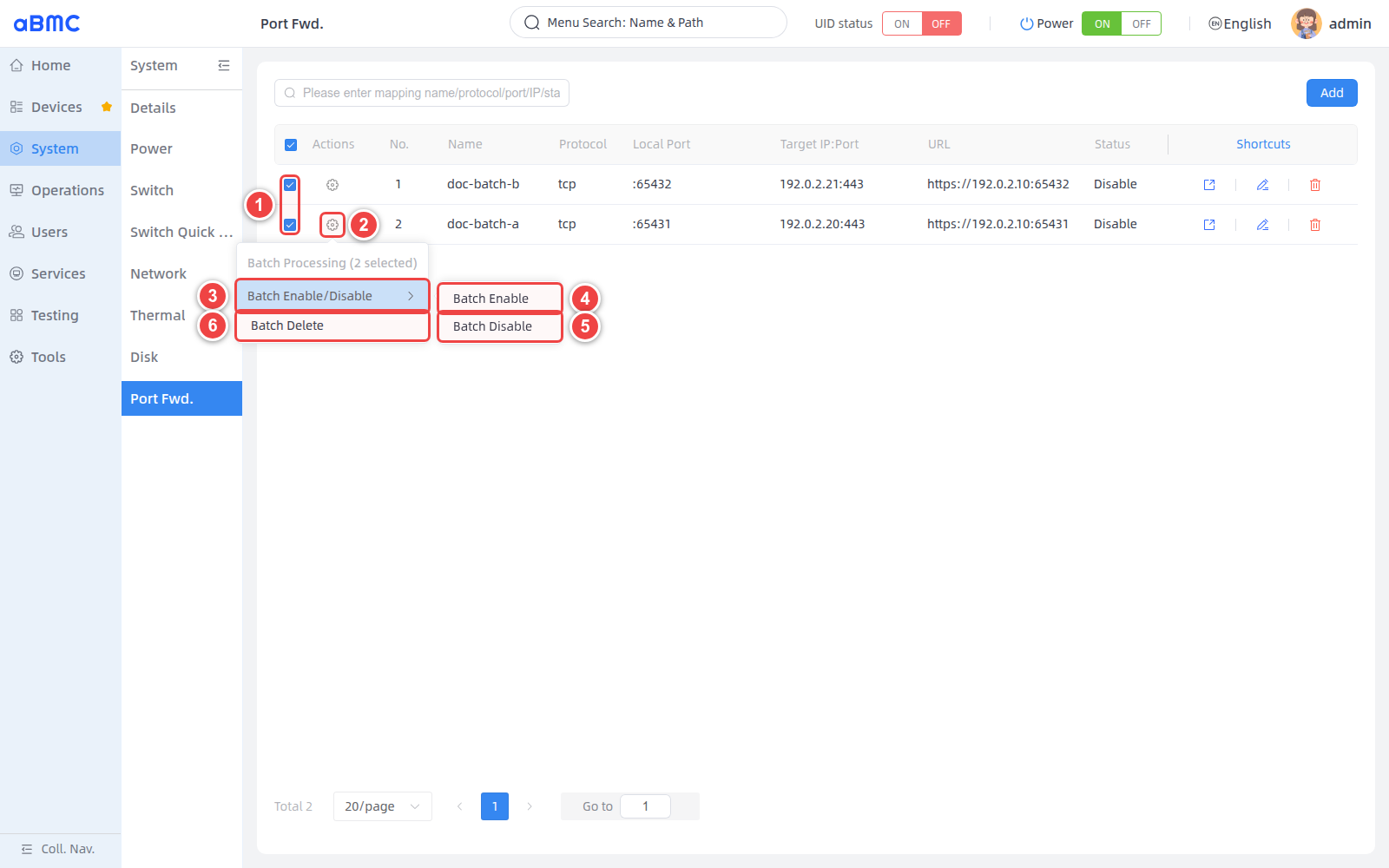
Batch operation scope
Batch operations will affect all currently selected rules. Before execution, you should check the selected number and rule range displayed on the page; after the operation is completed, check the status of each rule or confirm that the rule has been removed.
Temporary deactivation rule
When you only need to temporarily stop forwarding, you should use Disable to retain the rule configuration; when you are sure that the entry is no longer used, delete the rule.
FAQ
List display No Data
The current device has no port mapping rules configured. Click Add to create the rule; if you have just completed the configuration and the list is still empty, refresh the page and confirm whether the save operation was successful.
The local port cannot be used
The port may be occupied by the BMC system service or other port mapping rules. Replace the unoccupied Local Port and update the corresponding access address and operation and maintenance configuration simultaneously.
URL opening fails but port forwarding is normal
The URL shortcut entry and the actual forwarding parameters are independent of each other. Please check the protocol, address and port of the URL; non-Web services should use the corresponding protocol client connection BMC_IP:Local Port.
There is no need for rules at the moment but they will be used in the future.
Set the rule to Disable to retain the original configuration; re-enable it when you need to restore it, without deleting and re-creating it.