

Upgrade the Firmware via USB Cable
Introduction
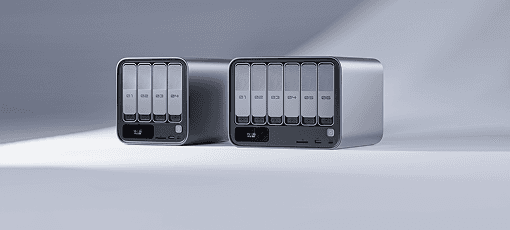
This article describes how to upgrade the firmware file on the host to the flash memory of the AIBOX DUO through the Type-C Cable. When upgrading, you need to choose the appropriate upgrade mode according to the host operating system and firmware type.
Preparatory Tools
- AIBOX DUO
- Firmware
- Host computer
- A good Type-C Cable
Prepare Firmware
The firmware can be obtained by compiling the SDK, or you can download the public firmware (unified firmware) from the Resource download. There are two types of firmware files:
-
A single unified firmware
The unified firmware is a single file packaged and merged from all files such as the partition table, bootloader, uboot, kernel, system, and so on. The firmware officially released by Firefly adopts the unified firmware format. Upgrading the unified firmware will update the data and partition table of all partitions on the board and erase all data on the board.
-
Multiple partition images
These are independent files for each function, such as the partition table, bootloader, kernel, etc., generated during the development stage. Independent partition images can update only the specified partition while keeping other partitions intact, which is convenient for debugging during development.
Note
Install the Flashing Tool
Windows
- Install the RK USB driver
Download Release_DriverAssistant.zip, extract it, and run DriverInstall.exe inside. To make all devices use the updated driver, first select Uninstall Driver, and then select Install Driver.
- Run RKDevTool.exe of AndroidTool
Notice
To avoid flashing issues caused by the tool version, it is recommended to use the tool bundled inside the public firmware package for flashing.
Linux
No device driver needs to be installed on Linux.
Download Linux_Upgrade_Tool and install it into the system as follows for easy invocation:
unzip Linux_Upgrade_Tool_xxxx.zip
cd Linux_UpgradeTool_xxxx
sudo mv upgrade_tool /usr/local/bin
sudo chown root:root /usr/local/bin/upgrade_tool
sudo chmod a+x /usr/local/bin/upgrade_toolDownload Linux_adb_fastboot and install it into the system as follows for easy invocation:
sudo mv adb /usr/local/bin
sudo chown root:root /usr/local/bin/adb
sudo chmod a+x /usr/local/bin/adb
sudo mv fastboot /usr/local/bin
sudo chown root:root /usr/local/bin/fastboot
sudo chmod a+x /usr/local/bin/fastbootEnter Upgrade Mode
There are usually two modes for upgrading firmware: Loader mode and MaskRom mode. Before flashing the firmware, we need to connect the device and put the board into an upgradable mode.
Loader mode
The AIBOX DUO chassis has no Recovery button, so there is no hardware way to enter Loader mode. Please use the software method.
Enter Loader mode by software
After the Type-C Cable is connected, run the following command on the board via the debug serial terminal or adb shell:
reboot loaderCheck Loader mode
To determine whether the board has entered Loader mode, you can check with the tools.
Windows
The AndroidTool shows the message Found One LOADER Device:
If the tool still does not show LOADER after entering Loader mode, check whether the Windows host prompts that new hardware is found and the driver is configured. Open Device Manager and you will see the new device Rockusb Device, as shown below. If not, go back to the previous step and install the driver again.
Linux
After running upgrade_tool, you can see a Loader prompt among the connected devices:
firefly@T-chip:~/severdir/down_firmware$ sudo upgrade_tool
List of rockusb connected
DevNo=1 Vid=0x2207,Pid=0x330c,LocationID=106    Loader
Found 1 rockusb,Select input DevNo,Rescan press <R>,Quit press <Q>:q
MaskRom mode
MaskRom mode is the last line of defense for a bricked device. Forcing entry into MaskRom involves hardware operations and carries certain risks, so only try MaskRom mode when the device cannot enter Loader mode.
Notice
Press and hold the MaskRom button on the AIBOX DUO chassis and keep it held, then connect the power:
At this point, the device enters MaskRom mode.
Flash the Firmware
Windows
Flash the unified firmware update.img
The steps to flash the unified firmware update.img are as follows:
- Switch to the
Upgrade Firmwaretab. - Click the
Firmwarebutton to open the firmware file to be upgraded. The tool will show detailed firmware information. - Click the
Upgradebutton to start the upgrade. - If the upgrade fails, you can try clicking the
EraseFlashbutton first to erase the Flash, and then upgrade again.
Linux
Flash the unified firmware update.img
sudo upgrade_tool uf update.imgNotice
If the upgrade fails, you can try erasing first and then upgrading again.
# The ef parameter for erasing the flash requires a loader file or the corresponding update.img
sudo upgrade_tool ef update.img   # update.img: the firmware you want to flash
# Flash again
sudo upgrade_tool uf update.img